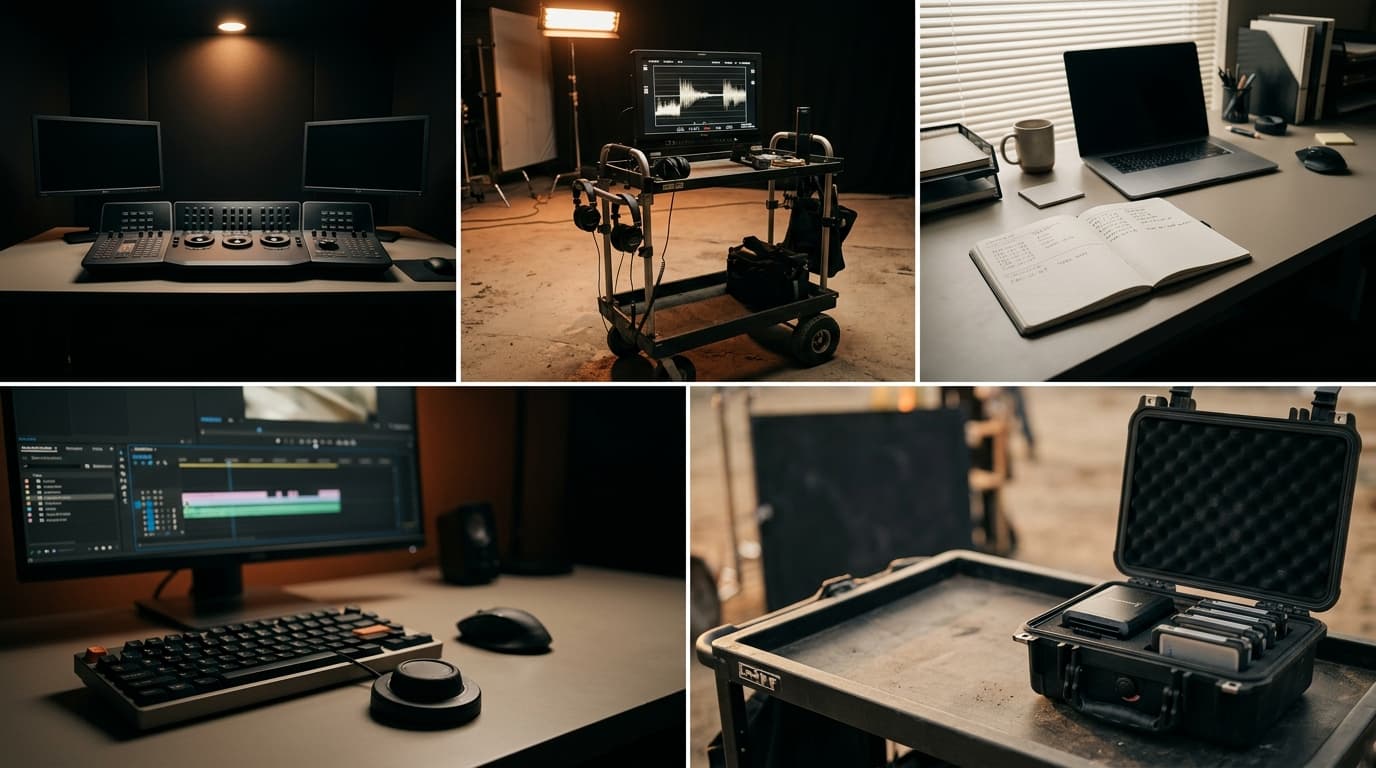
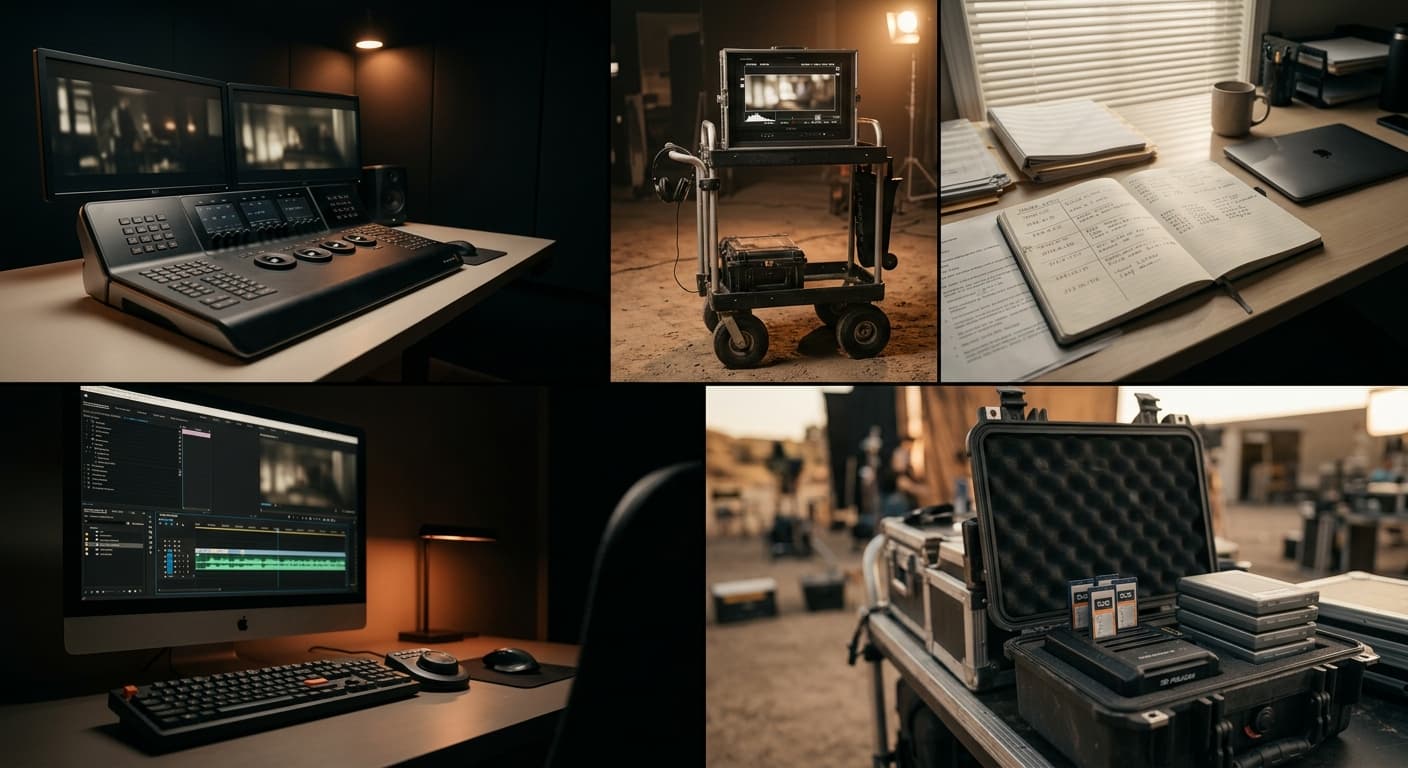
How to color match multicam in Premiere Pro
The full color workflow for a multicam edit in Premiere Pro, from a rough cut to a matched timeline. Two parallel paths, the manual one editors learn the hard way and the MOVON one that collapses it to a single match pass, with every Lumetri step named.
Most multicam color tutorials online stop at the point the editor actually has the problem. They cover one clip at a time, treat color matching as a creative grading exercise, and assume only two cameras of the same brand. A real timeline is messier: three or five or seven cameras, different sensor families, mixed LOG profiles, an operator who took the B-cam off auto white balance once and forgot, and a deadline.
This is the end-to-end workflow for that timeline. From a fresh rough cut to a matched, gradable sequence inside Premiere Pro. Two paths run side by side throughout: the manual workflow every editor learns by losing a weekend to it, and the MOVON Match workflow that collapses the matching pass to a selection and a reference. Both paths share the same upstream and downstream steps, so they are being compared on the same ground. Pick the lane that fits the project; sometimes you want the practice, sometimes you want the cut done.
Before the workflow begins
Three things should already be true on the timeline. If any are missing, fix them first.
Bins by camera. Every multicam shoot benefits from a one-bin-per-camera organisation in the Project panel. Drag everything from Cam A into a bin called *Cam A*, same for B, C, drone. Premiere can color-tag the bins so the timeline shows which clip is which at a glance. This is not strictly required for MOVON (the match works from the pixels, not the bin), but it makes the human side of the work, including selecting the right clips, tractable.
A rough cut. The story works, the pacing works, the audio is locked. The color pass goes faster on a cut that is not still moving underneath, and re-running the match after a re-cut is cheap, so the order is: cut first, match second, grade third.
Display LUTs applied via Lumetri Color → Basic Correction → Input LUT. This is the most important upstream step and the one most often missed. Sony S-Log3 footage needs the *S-Log3 to Rec.709* conversion LUT in Lumetri's Input LUT slot on the source clip. Canon C-Log3 needs *C-Log3 to Rec.709*. DJI D-Log needs the D-Log conversion. Without this, the timeline is showing flat, low-contrast LOG signal that no match tool, manual or automated, can do anything useful with. The deeper story on why this matters lives at LOG to display: what actually happens.
A common mistake: trying to set the LOG profile in *Modify → Interpret Footage*. That dialog handles framerate, alpha, fields, and pixel aspect ratio. It does not set the color space for a misread LOG clip. The fix lives in Lumetri's Basic Correction → Input LUT dropdown on the source clip itself.
Step 1. Identify what you've got
Before any match runs, the editor needs to know what's actually on the timeline. Two questions to answer.
Which LOG profile is on each clip? Right-click the clip in the Project panel → *Properties*. Premiere reports the codec, frame rate, color space, and (when available) the LOG profile tag. Confirm each clip is what you expect it to be. Mixed-format ingest, especially through proxy workflows, sometimes flips a clip's reported profile. Catch it now.
Which camera is the timeline's hero? The hero is the camera that nailed the look on this shoot. Not the most expensive camera. Not the one with the most clips. The one whose whites are cleanest, whose exposure was honest, whose skin tones the project wants to keep. Sometimes it's the A-cam, often it's the B-cam in better light, occasionally it's the drone in golden hour. Pick it on look, not on price tag. The full argument for how to pick a hero lives at Picking a good hero camera.
Once both are answered, the rest of the workflow is either *make the others look like the hero* (manual) or *select the clips in MOVON, pick the hero's clip as the reference, and let it match them* (automated).
Step 2. The manual path
The five-step workflow every multicam editor figures out the hard way. It produces a good match. It also takes most of an afternoon.
2.1. Confirm the Input LUT on every clip
Walk through the Project panel one camera at a time. Open the first clip, check Lumetri Color → Basic Correction → Input LUT. Confirm the right conversion LUT is loaded. If multiple clips from the same camera share a profile, select them all in the Project panel and apply the Input LUT once for the whole bin. Repeat for every camera group.
2.2. Scalar corrections in Lumetri
On a representative clip from each non-hero camera, fix the obvious things first.
- Temperature in Basic Correction nudges the whole frame warm or cool. Match the white balance of the hero. If the hero is locked to 5600K and the B-cam drifted to auto, this is where it comes back.
- Tint corrects the green/magenta axis, the one drone footage almost always fights.
- Exposure matches the brightness. Use the Lumetri scope (Window → Lumetri Scopes → Waveform) to compare hero and non-hero side by side. If the non-hero is half a stop hot, pull Exposure down accordingly.
These are scalar corrections: one number per axis. They get most cameras into the same neighbourhood. They do not, by themselves, get cameras to agree on every color in the volume.
2.3. Match the mids with curves
In Lumetri Color → Curves → RGB Curves, work on each color channel separately. The goal is to make the *midtones* of the non-hero clip agree with the hero's midtones on the parade scope.
- Pull the red curve's midpoint until the red parade matches.
- Same for green.
- Same for blue.
This is where the hours go. The midtones never quite settle in one pass. You'll pull red, find that the skin now reads slightly cool, pull blue, find the highlights got muddy, go back to red. Two-camera projects converge in twenty minutes. Three-camera projects take an hour. Four-camera projects with a drone take an afternoon, and the drone always loses the longest. Why the drone is the worst version of this problem lives at The drone clip always loses.
2.4. HSL Secondary for skin tones
After the parade matches, the skin sometimes still reads off. The eye is much more sensitive to skin than to walls or skies, so this is where the audience picks up a mismatch even when the scopes look agreed.
In Lumetri Color → HSL Secondary, pick the face with the color picker, refine the mask until just the skin is selected, and nudge Hue and Saturation in tiny increments. Five points or less. Larger moves are the creative grade, not the match.
2.5. Comparison View to verify
The eye adapts. Looking at one clip for ninety seconds tells the brain that this is the new normal. The fix: Premiere's Comparison View in the Program Monitor (toggle from the wrench icon menu, then split the view between hero and non-hero). Comparing two frames side by side defeats the eye's adaptation and surfaces the gap that's still there.
A separate tutorial on scope-based verification lives at Scopes, not eyeballs: how to verify a match.
When the side-by-side looks agreed and the scopes agree, the manual match is done.
Step 3. The MOVON Match path
The same upstream prep (Input LUTs in Lumetri, rough cut locked, bins organised by camera). The downstream creative grade is the same. Only the matching step itself collapses.
3.1. Open the panel, select the clips, pick the reference
After install, MOVON docks as a UXP panel in Premiere. *Window → Extensions → MOVON Match*. Open it and sign in with your MOVON account. The match runs against MOVON's servers, so a connection is required; the footage itself never uploads.
Select the clips you want matched, then pick one reference: a clip on the timeline that nailed the look, a grade you already built, a film stock from the library, or a still from your drive. This is the hero decision from Step 1, made explicit. Every selected clip gets pulled toward the reference.
A common case: the A-cam carried the most clips, but the B-cam in better light was the look the project wanted. Pick the B-cam clip as the reference. The whole selection pulls toward it.
3.2. Run the match
MOVON reads the color data from every selected clip and from the reference, and sends only that data to the MOVON server. No frames, no footage, no project files. Server-side, two models do the work: the backbone turns each clip's color into an embedding, and the predictor turns those embeddings into one grade per clip.
The panel then puts those grades on the clips, on your timeline, as a single undo step. Nothing to export, nothing to file, nothing to re-apply by hand. The reference clip is left alone; it is already the target everything else was matched toward.
Across the beta so far the median clip takes 1.3 seconds, so most sequences finish faster than a coffee break. If the film is finishing in Resolve or Final Cut, the panel can export the match to carry over. That is the only reason to touch export. The walk-through for that case is at Exporting and applying your match.
Step 4. Verify
Same verification step for both paths.
Play the timeline at speed. The cut that took an afternoon to color-match feels different at speed than at single-frame inspection. Skin should read as the same skin across cuts. Walls should read as the same walls. The scene should feel like it was shot on one rig.
Use the scopes. Open Lumetri Scopes (Window → Lumetri Scopes). Set to Waveform RGB. Step through a few cuts. The parade traces of hero and non-hero should sit on top of each other at the midtones. They probably won't be identical at the highlights and shadows (that's the creative grade's job), but the midtones agree on a finished match.
Trust the side-by-side over single-frame inspection. If the cut plays clean and the comparison view holds up, the match is good. If a single frame looks slightly off but the cut plays clean, leave it alone. The eye reads skin from neighbouring frames; an isolated still is a worse test than a played sequence.
Step 5. The creative grade goes on top
This is where the project's actual look comes in: teal-and-orange, day-for-night, the editor's taste. The match step exists so that *one* creative grade can be applied uniformly across the cut, without each camera responding differently.
The cleanest pattern for the creative grade on a multicam project: an adjustment layer above the entire timeline carrying the Lumetri Creative settings, sitting over the per-clip matches. The match lives on the clips. The grade lives on one layer. Tweaking either does not disturb the other.
A grade applied *before* the match (or interleaved with it) means the match runs against the graded signal, not the matched signal it was calibrated on. The math goes wrong and the cameras start disagreeing again. Match first, grade second, every time. The full chain explanation lives at Where MOVON sits in your grading chain.
Common pitfalls
Expecting the match to do your creative grade. It will not. It gets your cameras to agree with each other. What that agreed look becomes is still your call, on top of the match.
Picking the most expensive camera as the hero by reflex. The A-cam is not automatically the hero. If the B-cam was in better light, the B-cam is the hero. Pick by look, not by price tag.
Trying to match in the creative grade. Matching and grading are two different passes. A creative grade on top of unmatched cameras produces a different result for each camera. Get the cameras agreeing first, then put the look on top of all of them at once. The longer argument for keeping the two separated is at Matching cameras is not grading them.
Forgetting the drone. Drone footage almost always needs more correction than the cinema cameras because the sensor is smaller and the color science is different. Plan for the drone first, not last. If the drone resists every match attempt, it probably needs its own scalar correction pass before the broader match runs.
Letting the eye decide. The eye adapts. The vectorscope does not. When the cameras *look* matched but the scopes disagree, the scopes are right. Step through the cut on scopes, not on the program monitor alone.
Common questions
Does the manual workflow take the same time on every shoot? No. It scales with the number of camera groups, along the ladder in section 2.3, and the drone always extends the curve.
Can MOVON do the manual workflow's steps in any order? MOVON does the matching pass only. Any conversion you want and the creative grade stay yours; they are different jobs. MOVON sits exactly where Step 2 lives in the manual path, and collapses 2.1 through 2.5 into a single match pass.
What if MOVON's match is too aggressive? MOVON is calibrated to err toward over-matching on purpose, because dialing back is faster than chasing missing color. Undo the pass, pick a reference closer to the clips that went too far, and run it again. The full troubleshooting tree lives at Match looks too aggressive or off.
What if a clip should not have been matched? The selection is yours: undo, deselect it in the panel, and re-run the match. MOVON only matches the clips you selected, toward the reference you picked.
Does MOVON work with proxies? It analyses whatever pixels Premiere is currently showing on the timeline. Proxies that preserve the original LOG color space behave like full-res footage for the match. Proxies rendered to Rec.709 will skew the result; toggle off proxies before running the match, or generate proxies that keep the original color space.
Can I finish the project in Resolve or Final Cut? Yes. The panel exports the match in a standard format that both read, so a sequence matched in Premiere can be finished elsewhere without running MOVON again. The cross-tool workflow is at Exporting and applying your match.
The shorter version
A multicam color workflow in Premiere has the same shape every time. Input LUTs go on first via Lumetri Basic Correction. Cameras get matched to a chosen reference, either by hand through curves and HSL or by MOVON in a single match pass. The creative grade goes on top, ideally on an adjustment layer above the per-clip matches. The verification happens on scopes, not on the eye.
The manual path takes an afternoon and teaches the editor what's going on under the hood. The MOVON path runs at a median of 1.3 seconds a clip and gives the afternoon back to the creative grade. Both produce a matched timeline; both leave the creative decisions to the editor.
For the technical background on *why* multicam footage never matches out of the box, the color-science pillar is at Multicam color matching: the complete guide. For the question of static profile lookup versus adaptive analysis (and why MOVON does the second), there is a separate doc at How MOVON compares to other color-matching plugins.
The private beta is free through the end of 2026 and runs on macOS; the download is here. The blog tracks what ships and what breaks in the meantime.
The MOVON Labs team
Get the next dispatch in your inbox.
Release notes, color science notes, and the occasional field report. No marketing. Unsubscribe one click.